Documentation
Standalone Converter Quick Start Guide
In this article we will give a brief overview of how to quickly get started with a standalone GAF Converter.
Download and Install GAF Converter
Firstly, download GAF Converter from the downloads page and install it. Standalone GAF Converter is built with Adobe AIR, so it also needs the Adobe AIR runtime to be installed on your computer — see the next section for how to install the correct version.
Install the Adobe AIR runtime (version 33)
Adobe AIR is no longer distributed by Adobe. It is now developed and hosted by HARMAN, and the old automatic AIR download that used to ship with the converter no longer works. Because of this, you have to install the AIR runtime manually before you run GAF Converter.
To install the correct runtime:
- Open the HARMAN AIR runtime page: https://airsdk.harman.com/runtime.
- The main “Adobe AIR for Windows” / “Adobe AIR for macOS” buttons at the top of the page install the latest runtime (currently the 51.x series), which will not work with GAF Converter — do not use them.
- Scroll down to the list of older “shared runtime” versions and choose a 33.1.1.x build (for example 33.1.1.743). Download the installer for your operating system (Windows or macOS).
- Run the downloaded installer and follow the on‑screen steps to install the AIR 33 runtime.
- Once the AIR 33 runtime is installed, start GAF Converter as described below.
If you cannot find a 33.x build on the runtime page, every published release is also listed on the HARMAN AIR release notes page — open any 33.1.1.x release from there to reach its download.
Run and Preview
After the installation is complete run the application and the following window will be opened:
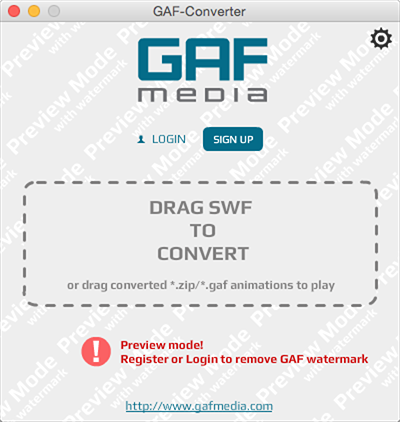
This is the Preview Mode. Here you can start converting your SWF animations right away, without logging in or registering. Just drag an SWF file in the converter window and the conversion will immediately start. After the conversion is complete, GAF Player will automatically play the conversion result.
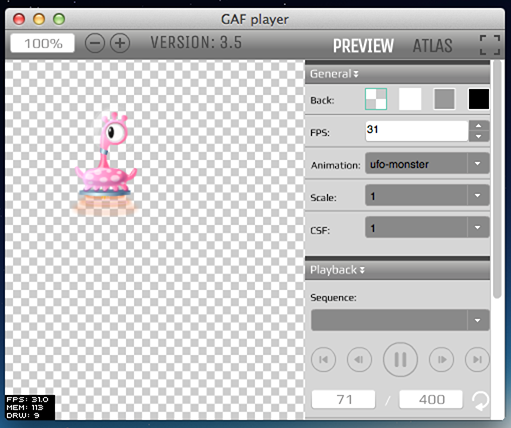
Conversion Settings
GAF Converter has a number of conversion settings that you can set up before conversion. You can choose conversion source, conversion mode, texture atlas settings and much more. Conversion Settings Dialog is accessible by clicking settings button in the top right corner of the working area.
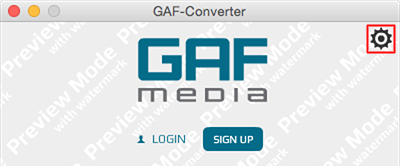
Please read article Standalone Converter Settings Dialog for more information about each conversion setting. By default, GAF Converter saves the conversion result as *.zip archive in the same directory with the original SWF file.
GAF playback libraries
Conversion result you can play in one of the frameworks using corresponding GAF playback library. All available playback libraries you can find on our download page.
Starling GAF

Starling GAF playback library you can download from github. Demo projects are also available under demo directory on github. API reference available on our site.
Unity3d GAF

Unity3d GAF playback library you can download from the Unity3d Asset Store in two versions: Free and Pro.
Pro plug-in version provides extended Unity3d interface for GAF:
- Flexible resources management (possibility to load animation data (textures/materials) in a custom way - from Unity bundle for example).
- Working with filters (*Unity Pro editor required).
- Integration with the mecanim state machine (through the mecanim events system).
Demo scene examples are included into Free and Pro unity packages.
API reference Free and API reference Pro available on our site.
Cocos2d-x v3 GAF

Cocos2d-x v3 GAF playback library you can download from github. Demo projects also available under demo directory on github. API reference available on our site.
Supported platforms:
- Windows - Cocos2d-x v3.1.1, v3.2
- iOS - Cocos2d-x v3.1.1, v3.2
- Android - Cocos2d-x v3.1.1, v3.2
- Windows Phone 8 in Cocos2d-x v3.3
To check GAF Player examples:
- Copy repo (or create symlink) to cocos2d-x/external/
- Compile
- Run
Video instruction can be found here: GAF Video Instructions for XCode
Cocos2d-x v2 GAF

Cocos2d-x v2 GAF playback library you can download from github. Demo projects are also available under demo directory on github. API reference available on our site.
Note: Works only with animations converted with conversion mode: "plain". More information about conversion modes and their key differences read in article Conversion modes “plain” and “nesting”.
Cocos2d GAF

Cocos2d GAF playback library you can download from github.